
Win7电脑制作清理垃圾工具的方法
在我们日常使用win7系统电脑时,应该有很多用户想要自己制作一个清理垃圾工具的情况,那么Win7电脑怎么制作清理垃圾工具呢?下面小编就为大家带来Win7电脑制作清理垃圾工具的方法,感兴趣的小伙伴快来看看吧。
Win7电脑制作清理垃圾工具的方法
1、运行cmd,输入DEL /?
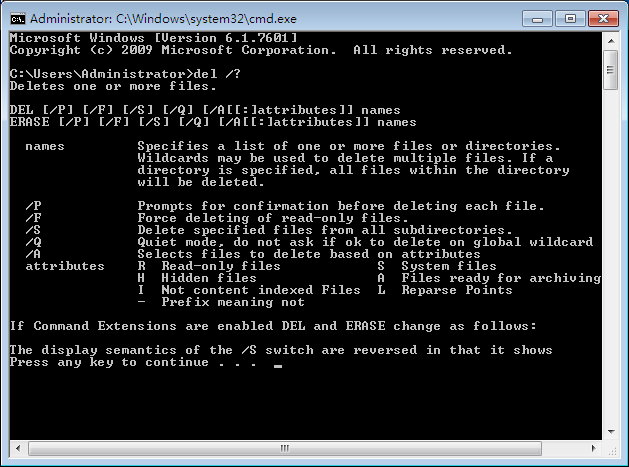
2、新建txt文件,重命名为“清除系统垃圾.txt”,输入以下代码:
01@echo off
02echo 请勿关闭本窗口!
03echo 正在清除系统垃圾文件,请稍等......
04del /f /s /q %systemdrive%*.tmp
05del /f /s /q %windir%prefetch*.* rd /s /q %windir% emp & md %windir% emp
06del /f /s /q "%userprofile%Local SettingsTemp*.*"
07del /f /s /q %systemdrive%*._mp
08del /f /s /q %windir%*.bak
09del /f /s /q %systemdrive%*.log
10del /f /s /q %systemdrive%*.gid
11del /f /s /q %systemdrive%*.chk
12del /f /s /q %systemdrive%*.old
13del /f /s /q %systemdrive%ecycled*.*
14del /f /q %userprofile%cookies*.*
15del /f /q %userprofile%ecent*.*
16del /f /s /q "%userprofile%Local SettingsTemporary Internet Files*.*"
17del /f /s /q "%userprofile%ecent*.*"
18echo 清除系统垃圾完成!
3、这段代码意思时在安静模式下,删除一个或多个文件或者目录列表中只读文件和所有子目录中的指定的文件,删除全局通配符时,不要求确认。
4、保存文件,再把这个记事本 “清除系统垃圾.txt”进行重命名为.bat。
5、只要双击运行这个bat批处理文件即可清理系统垃圾了,清除完垃圾之后会自动退出文件。
以上就是小编为小伙伴们带来的Win7电脑制作清理垃圾工具的方法,更多相关教程请关注系统部落。
相关文章
- win7旗舰版下载_win7原装旗舰版_win7官方旗舰版64位下载
- VMware虚拟机Win7镜像下载_虚拟机专用Win7镜像中文版系统
- windows7无法搜索新更新怎么办?
- Win7游戏专用精简版iso下载_Win7游戏专用免激活精简版
- win7关机很久都关不上怎么办?
- win7时间不能自动更新的三种解决方法
- win7密码输入错误被锁定了怎么办?
- win7edge浏览器打不开网页怎么办?win7edge浏览器打不开网页解决方法
- Win7提示对象不支持此属性怎么办?
- 最精简最稳定最流畅win7镜像_最精简最稳定最流畅Win7镜像64位
- win7怎么查看端口是哪个进程的?
- win7已达到计算机的连接数最大值无法使用的解决方法
- win7系统的可移动磁盘打不开怎么办?
- win7电脑高级系统设置打不开的解决方法
- win7 update无法检查更新怎么解决?
- win7系统无法打开exe可执行文件的三种解决方法
相关推荐
-
Win7系统纯净版64位旗舰版(精致优化) V2023
Win7系统纯净版64位旗舰版(精致优化)是选用官方Windows 7 SP1 64位旗舰版制作的Win7旗舰版系统,在保证Win7系统稳定的基础上进行简单的优化,完美兼容8代以下CPU机型,集成USB3.0驱动,运行流畅稳定,无人值守自动安装,兼容品牌机以及组装兼容机。
-
win7系统下载纯净版 windows7旗舰版精简安装版ISO镜像

windows7旗舰版精简安装版ISO镜像简化了大部分不必要的冗余组件,保留了一些功能组件,对工作和游戏没有影响,对系统进行了全方位的优化,大大减少了CPU的内存占用,为任务分配了更多的资源,让电脑更流畅。
-
win7img镜像可上网版 V2023
win7img镜像可上网版 V2022是一款可以在手机上安装的操作系统,用户可以使用这个文件实现在手机上安装win7系统,听起来是不是很神奇,当你在手机上安装完成后,可以在手机上自由轻松的上网。
-
笔记本Win7 32位系统纯净版镜像下载(免激活) V2023
windows7旗舰版32位纯净版镜像是专为笔记本用户准备的电脑操作系统,这款系统占用内存低,开机快速,不卡机,不假死,极限的优化精简,兼容性强,适合各种笔记本机型,是值得体验的低配置电脑系统。
-
win7精简版32位超小iso镜像 V2023

win7精简版32位超小iso镜像是一款在官方旗舰版基础上进行优化改良后的win7装机版本,系统整体性能优化。用户可以简化用户的繁琐部分,而不会影响用户的工作。系统一般用在低配老旧电脑、虚拟机、usb移动系统、ramos内存系统、等等方面,欢迎下载体验!
-
最纯净的Win7系统旗舰版系统 V2023
最纯净的Win7系统旗舰版系统可大幅简化系统内部,以最小体积进行系统安装,不仅为用户提供更多空间,而且完全免费。后台闲置运行进行筛选,缓解内存压力。残留文件自动扫描,确保系统安全简化。内置全能的驱动更新工具,可以随时升级驱动硬件。一键式安装自动化,无需客户长时间等待。